
If you plan YouTube videos with vidIQ open in one tab and Claude in another, you can stop carrying numbers between them. Here is how to connect the two, step by step, and the five things I ask it most.
What you get when you connect vidIQ to Claude
Connect vidIQ to Claude, and you can research keywords, review your channel, find breakout videos, and score title ideas from the same chat. You ask in plain English, and the answers come from vidIQ’s data.
I use vidIQ to plan videos for my channel. I am not sponsored by them. It is just a tool I use on my channel.
Before this, vidIQ lived in one tab and Claude lived in another. I would look up a keyword, copy the numbers, paste them into Claude, and ask what it thought. Now Claude grabs the numbers itself.
Here is the short version of the setup:
- Open the connector menu in Claude.
- Search for vidIQ and click the plus.
- Click Continue connecting.
- Click Authorize on the vidIQ page.
- Check that it says Connected.
Each step has a screenshot below, so you can follow along click by click.
What you need before you start
Two accounts. A Claude account, and a vidIQ account. You can sign up for vidIQ free at vidiq.com.
vidIQ says its Claude connection works on every vidIQ plan, including Free.
One thing to know up front, though: credits. Most vidIQ research tool calls cost 5 credits, drawn from the same balance you use on vidIQ’s website, according to vidIQ’s setup guide. Some tools are free, and generating things costs more.
One Claude prompt can trigger several of those calls, so a free account hits its limit sooner.
If you want Claude to see your own channel’s stats, your YouTube channel has to be connected to the same vidIQ account you authorize. You do that in Channel Settings on app.vidiq.com.
I did this in the Claude desktop app. You can also set it up on the web, per Claude’s connector directory guide, and once it’s connected it shows up in Claude’s phone apps too. Menu labels may look a little different depending on where you are.
If connectors are new to you, my plain-English rundown of what Claude connectors are is a good two-minute primer. Trust me, you do not need to understand how they work under the hood. I am not a coder, and this took me about a minute.
Step 1: Open the connector menu
Start a new chat. In the message box, click the plus button, then hover over Connectors.
A second menu slides out. Hover over Add connector, then click Browse connectors.
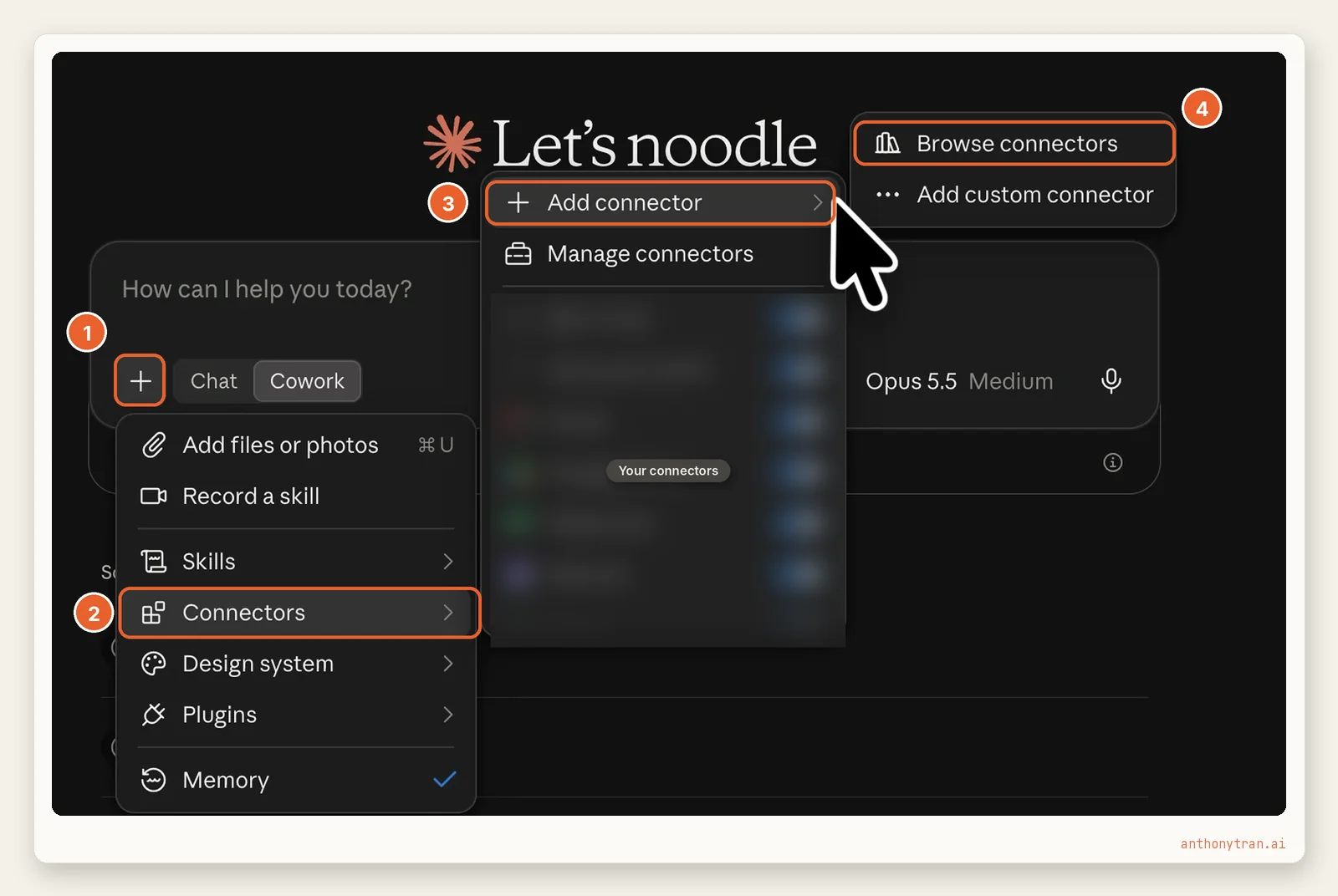
You will see a list of tools you already connected in that menu. Mine is blurred out in the screenshot. Yours might be empty, and that is fine.
Step 2: Search for vidIQ and click the plus
The connector directory opens. Click the search box at the top and type vidIQ.
You might see two results named vidIQ.
Look at the small gray word under the name. You want the one that says Connector, not Plugin. Click the plus button on the right side of that row.
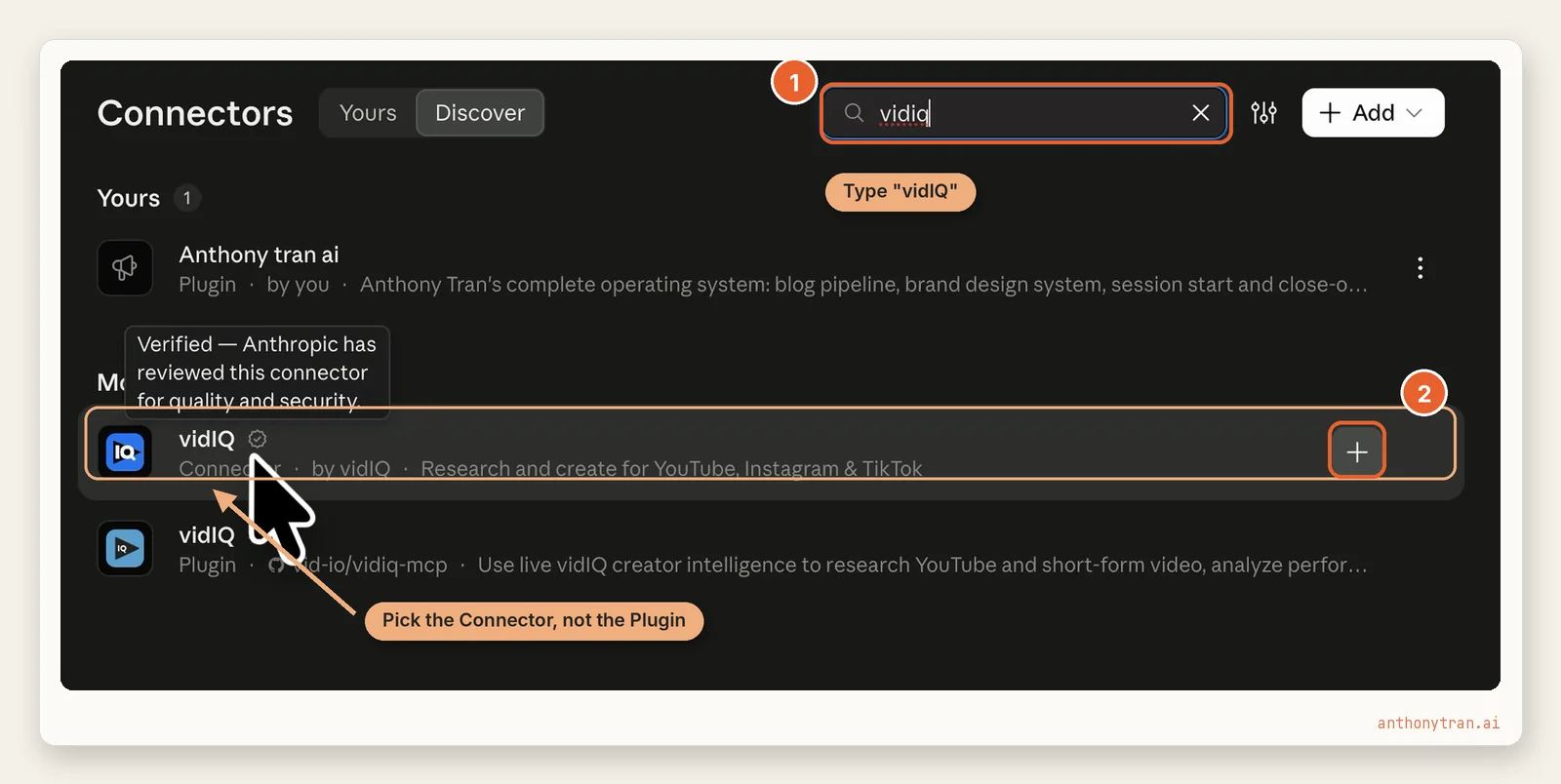
That little check mark next to the name means it is a verified connector. Anthropic says that means it tested the connector’s tools for quality and compatibility. It also says verification is not a security audit, so still read the permissions on the next screens before you approve anything.
Step 3: Click Continue connecting
Your web browser opens a page that asks, “Finish connecting a connector?”
This is a safety check. It only shows up because you just started the connection from Claude. Click Continue connecting.
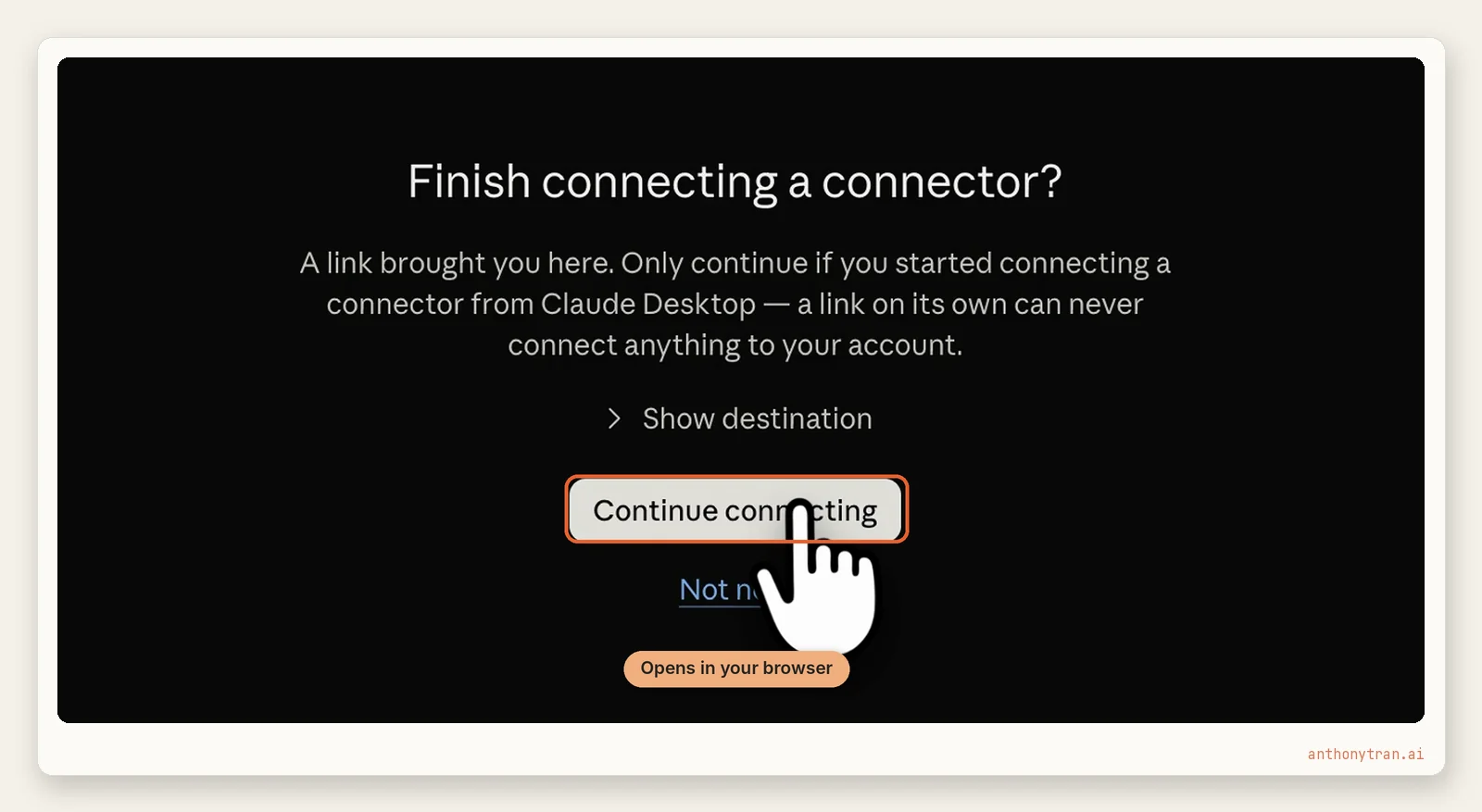
If you are not signed in to vidIQ in that browser, it will ask you to sign in first. Use the same vidIQ account your YouTube channel is linked to.
Step 4: Authorize vidIQ
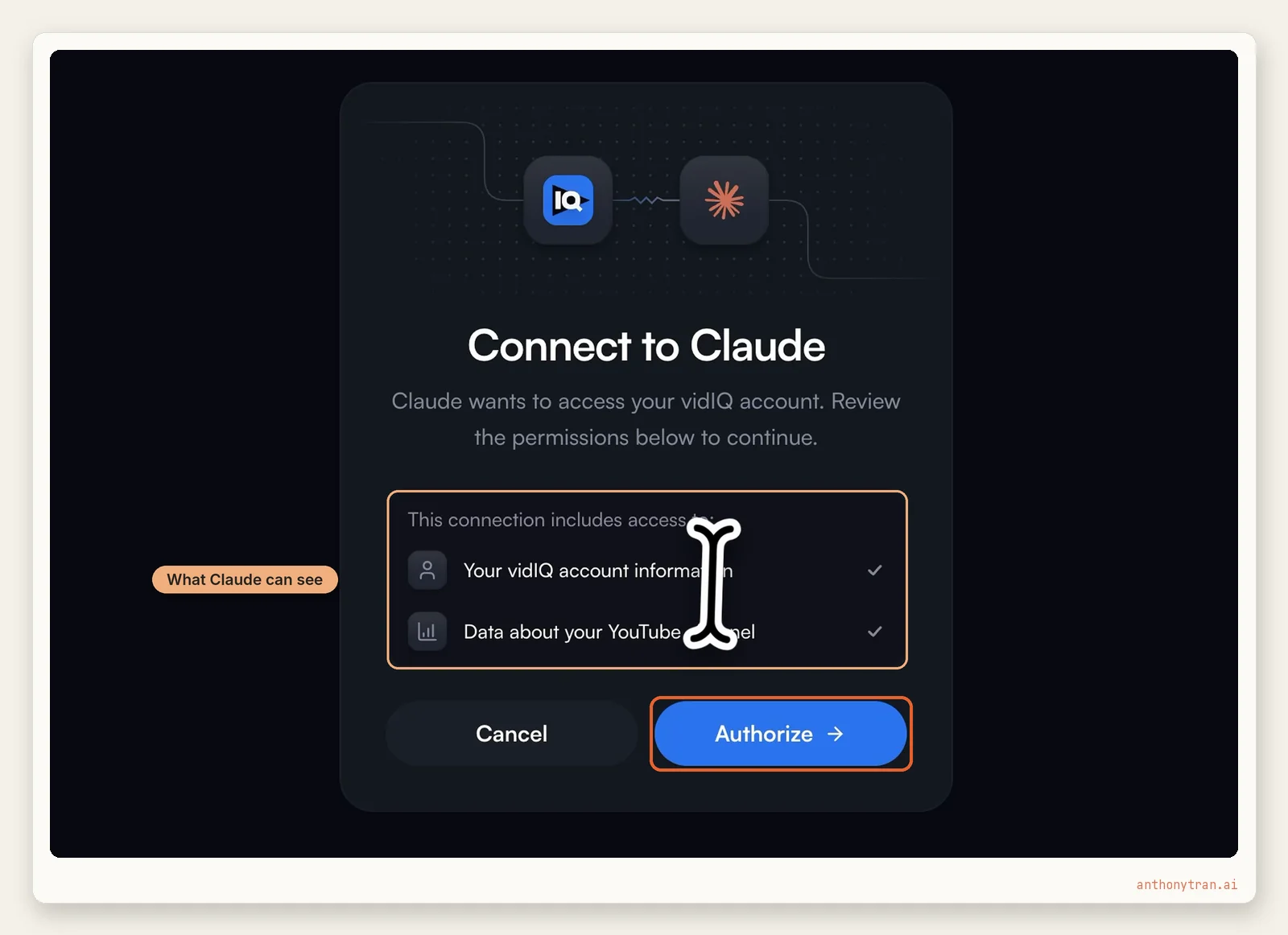
Now vidIQ asks, “Connect to Claude?” It lists what Claude will be able to see: your vidIQ account information and data about your YouTube channel.
Read that list, then click Authorize.
Step 5: Check that it says Connected
Head back to Claude. The vidIQ row now sits under Yours, with Connected on the right. A small note at the bottom of the screen says Connected to vidIQ.
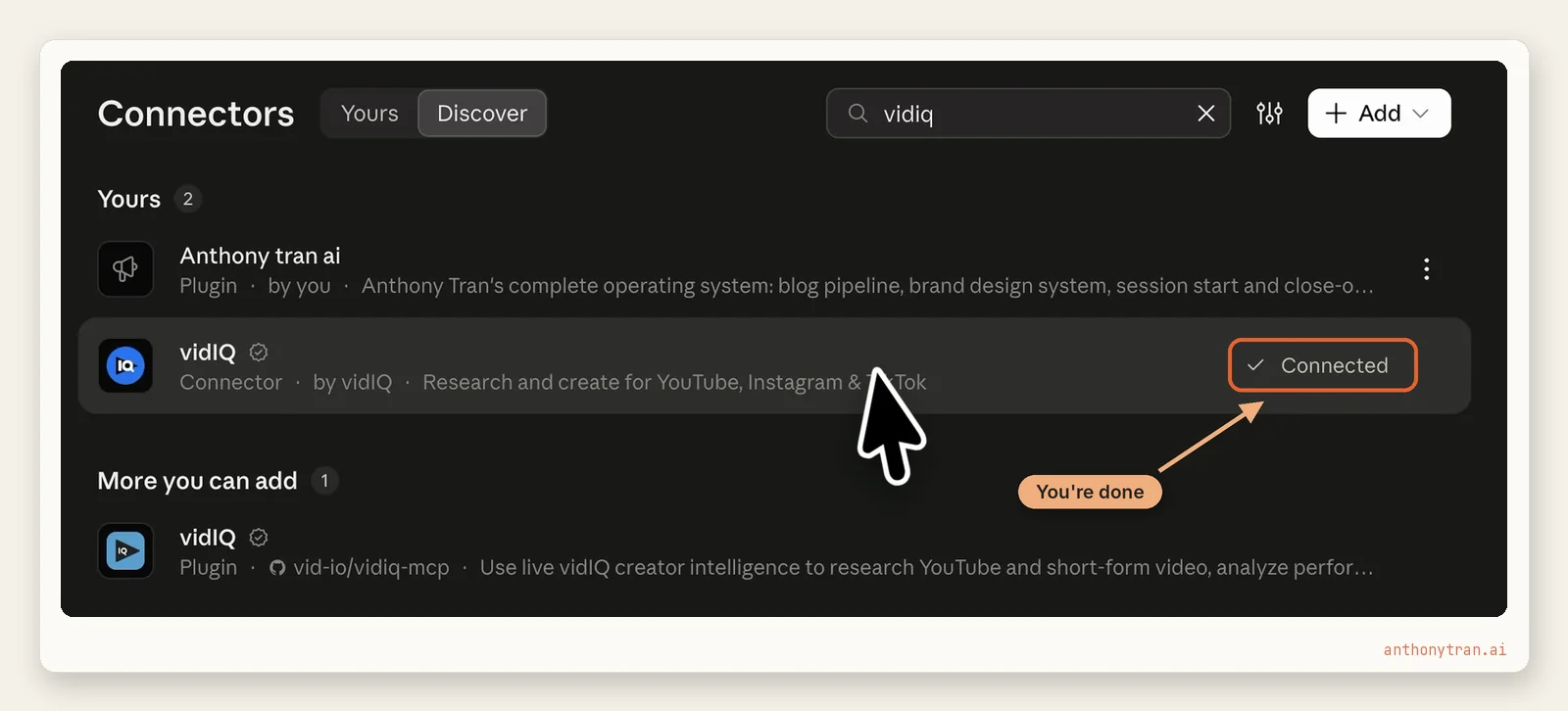
That is it. Close the window and start a chat.
Here is the part people miss. You do not have to say “use vidIQ” every time. Ask a YouTube question and Claude reaches for vidIQ when the question calls for it.
The 5 ways I use vidIQ inside Claude
You might be wondering why bother, when vidIQ has its own website with all the same tools. Fair question.
In my setup, Claude already has context about my channel from the notes and conversations I’ve shared with it. So it does not just hand me vidIQ’s numbers, it tells me which ones matter for my channel and what to do next.
If you are starting fresh, give Claude a short description of your channel and who it’s for before you ask anything. That one step makes the answers a lot more useful.
Think of it like a good accountant. Anyone can print the bank statement. The accountant reads it and tells you what it means for you.
I also talk to Claude instead of typing. There is a microphone button in the message box, and it is a lot faster to just say what I want.
1. Keyword research
This is the one I use most. I asked Claude to do keyword research for a video about vidIQ.
Hey Claude, I’m doing some keyword research for a video idea about vidIQ. Can you do some keyword research and tell me which keywords I should consider targeting in my video?
vidIQ’s research card showed up right inside the chat. Overall score, monthly searches, competition, and a table of related keywords with their own scores.
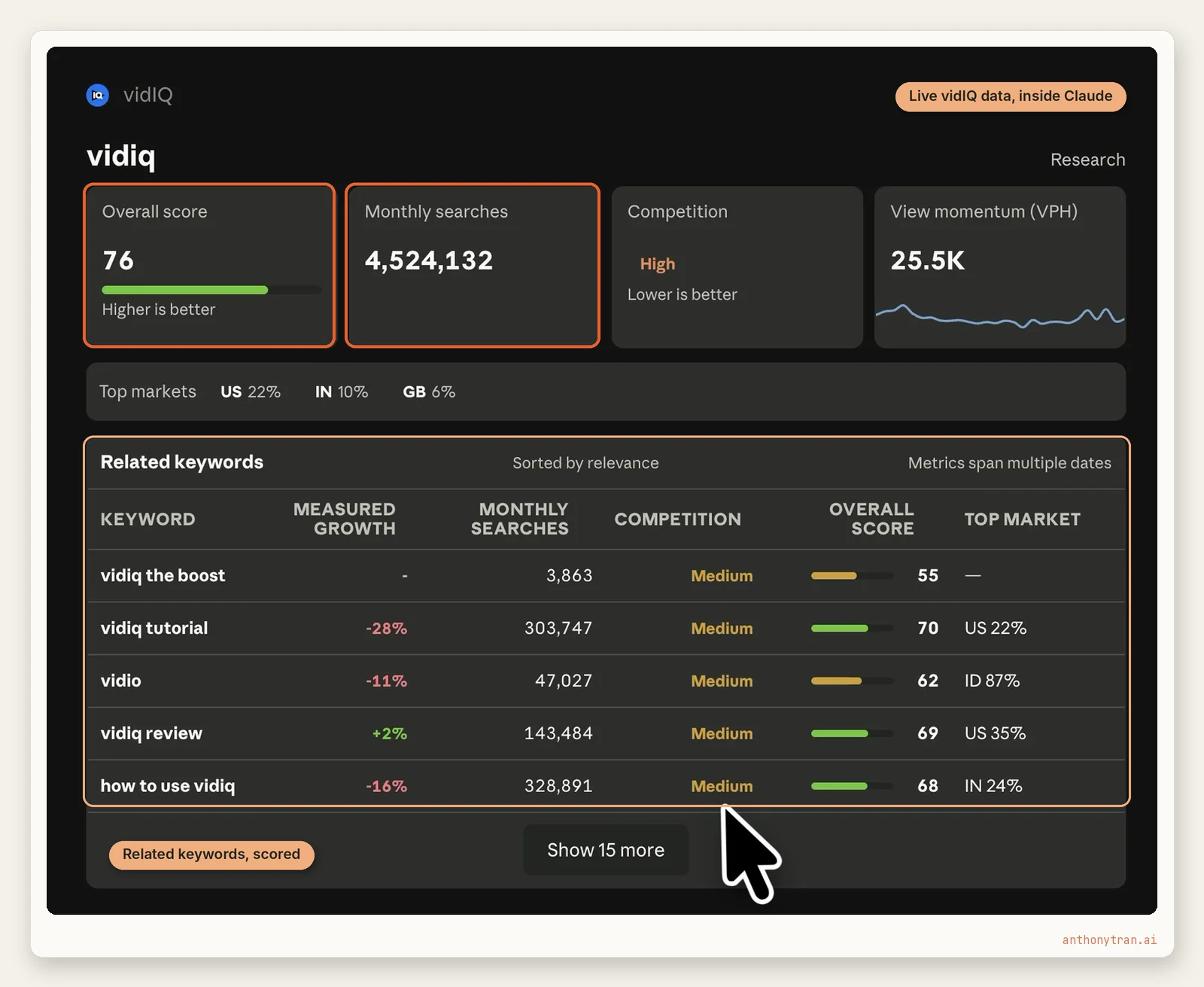
Then Claude did the part I care about. It picked the keywords that fit what I was actually making and told me which ones to put in the title.
You can still do this on vidIQ’s site. Go to Research, then Keywords. Doing it in Claude just saves you the step of explaining your channel every time.
2. Thumbnail ideas
Not a lot of people know vidIQ can make thumbnails, and Claude can run that thumbnail maker for you.
One catch. vidIQ’s setup guide says thumbnail generation is not part of the directory connector we just set up. It needs vidIQ’s custom connector, which you add with a link from that same guide.
I already had the custom one connected from before, which is why it worked in my video.
Claude asked my permission before it ran vidIQ’s thumbnail tool, which is a good habit to keep. Approve it once, or for the whole task. Each thumbnail costs 22 vidIQ credits, per vidIQ’s guide, and every retry costs again.
My first try was not great. I did not give it a photo of me, so I got a generic design.
For the second try, I attached my headshot and asked for my brand colors. Claude made a much closer version, but read its reply: it told me it built that one itself instead of through vidIQ.
So that one does not count as vidIQ’s work. Always read what Claude says it actually did.
Neither one was ready to post. Treat these as a first draft you finish yourself.
3. Your own channel stats
This one is quick, and I like it more than I expected. I asked a simple question.
Hey Claude, can you tell me what my best performing YouTube video is?
Claude went through vidIQ, found my channel, and pulled my videos with views, likes, and comments. It ranked them by total views, so “best performing” here means most viewed, not watch time or subscribers gained.
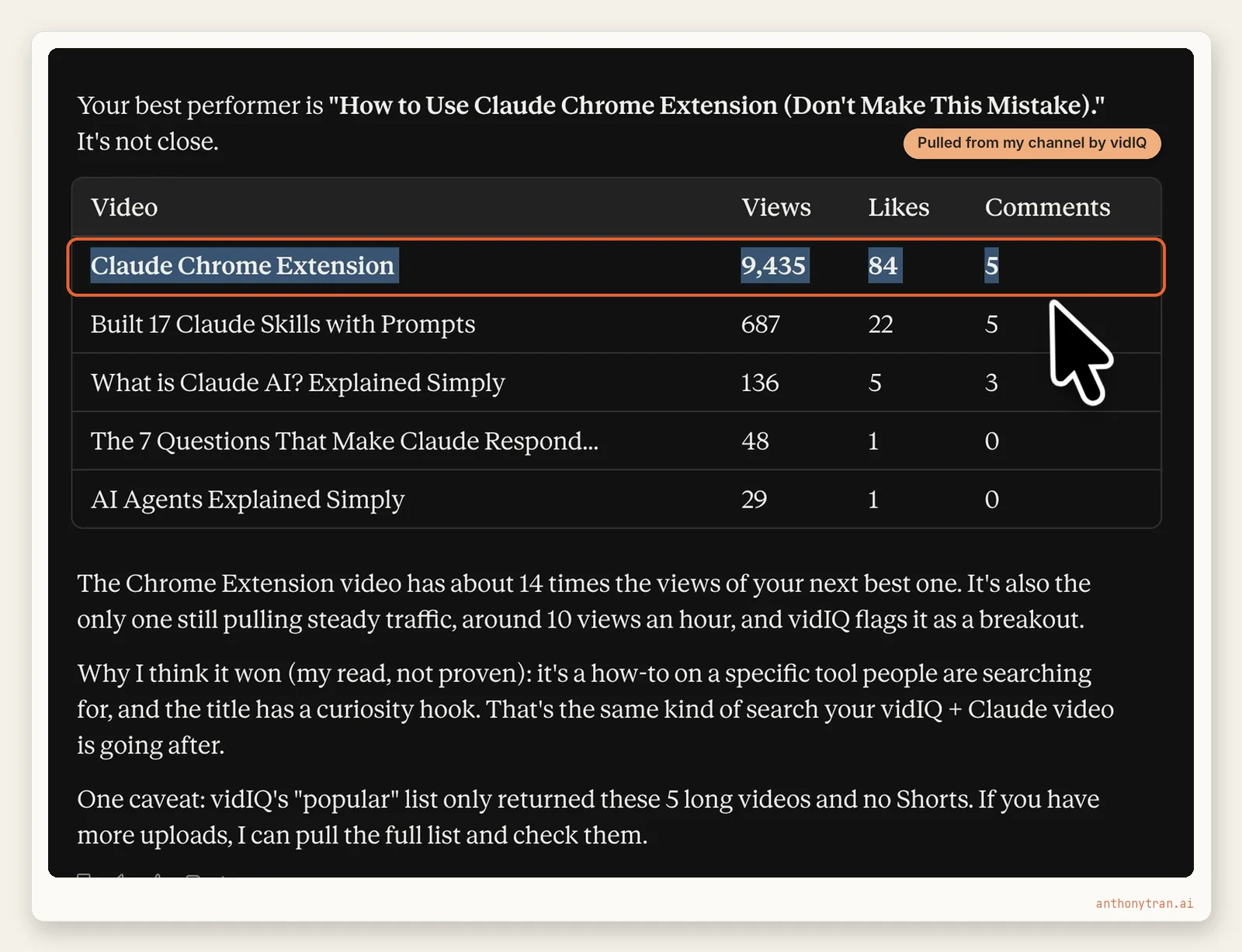
My most-viewed video by far is the one on the Claude Chrome extension, with 9,435 views when I recorded this. Nothing else is close.
That is a quick gut check on what is working. If you want something more specific, ask for your five most-viewed videos by lifetime views and when the data was pulled. And because it is a chat, you can ask the next question right away, like “what other videos could I make that would do this well?“
4. Breakout videos from small channels
This is my favorite for finding video ideas. vidIQ calls them outliers: videos getting way more views than the channel’s size would predict.
On vidIQ’s website you search a topic, open Filters, and set things like subscriber count and publish date. In Claude, I just asked.
Hey Claude, can you find videos about Claude that were published this week, from newer channels with less than 3,000 subscribers? See if there are any video topics I could use for my channel.
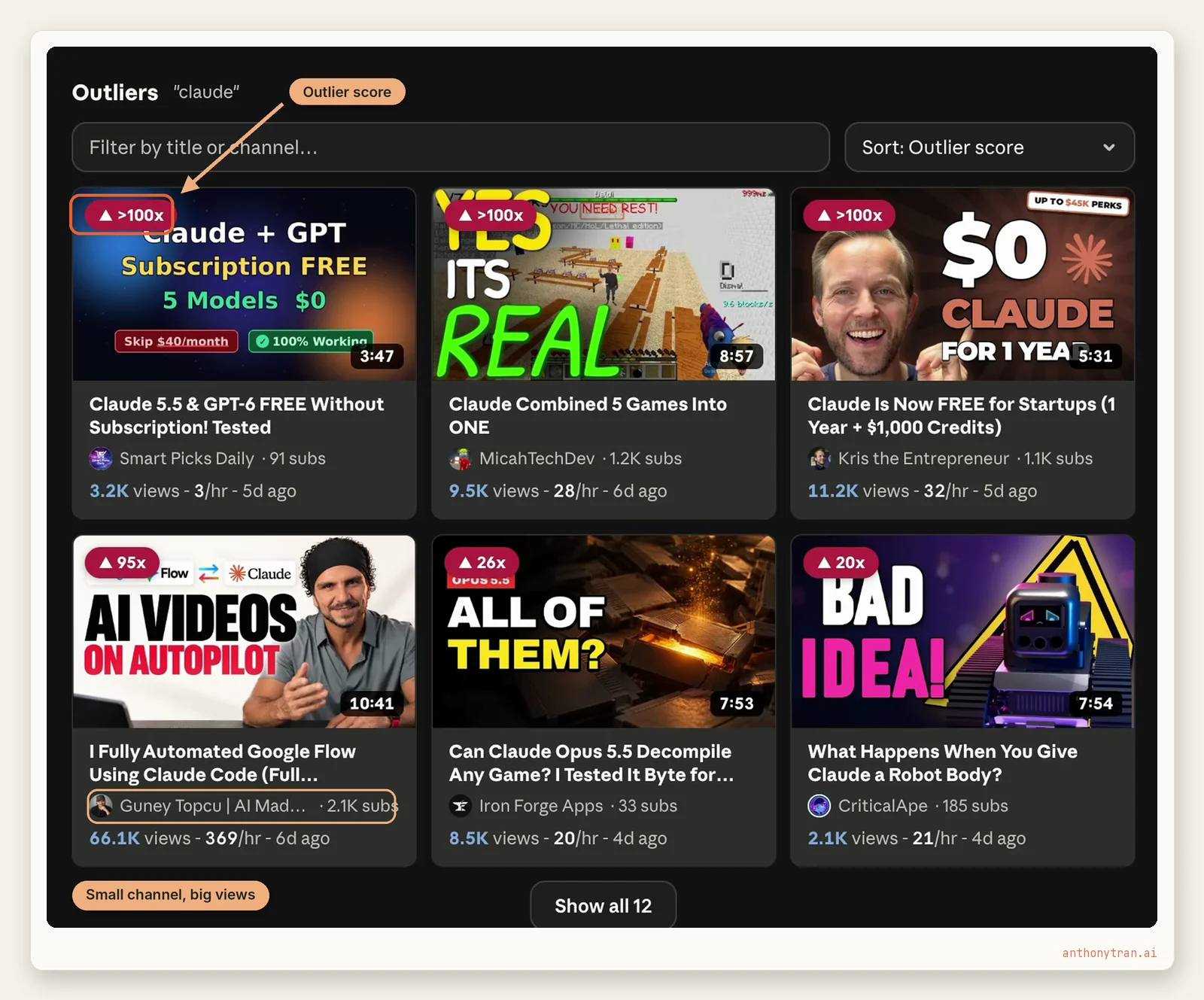
Look at that. At the time I recorded this, one creator with about 2,100 subscribers had over 66,000 views on a video about automating Google Flow with Claude Code. That is a signal the topic has legs, even for a small channel.
Then Claude cut out the noise, like games and “free Claude” hacks, and gave me a short list of topics that actually fit my channel.
5. Title ideas with scores
Last one. I asked Claude for title ideas for this exact video.
Hey Claude, can you give me some ideas for a good YouTube title for this video about how to connect Claude to vidIQ, and the ways I use them together?
Claude came back with 12 titles, each one scored by vidIQ. Higher number, stronger title, by vidIQ’s measure.
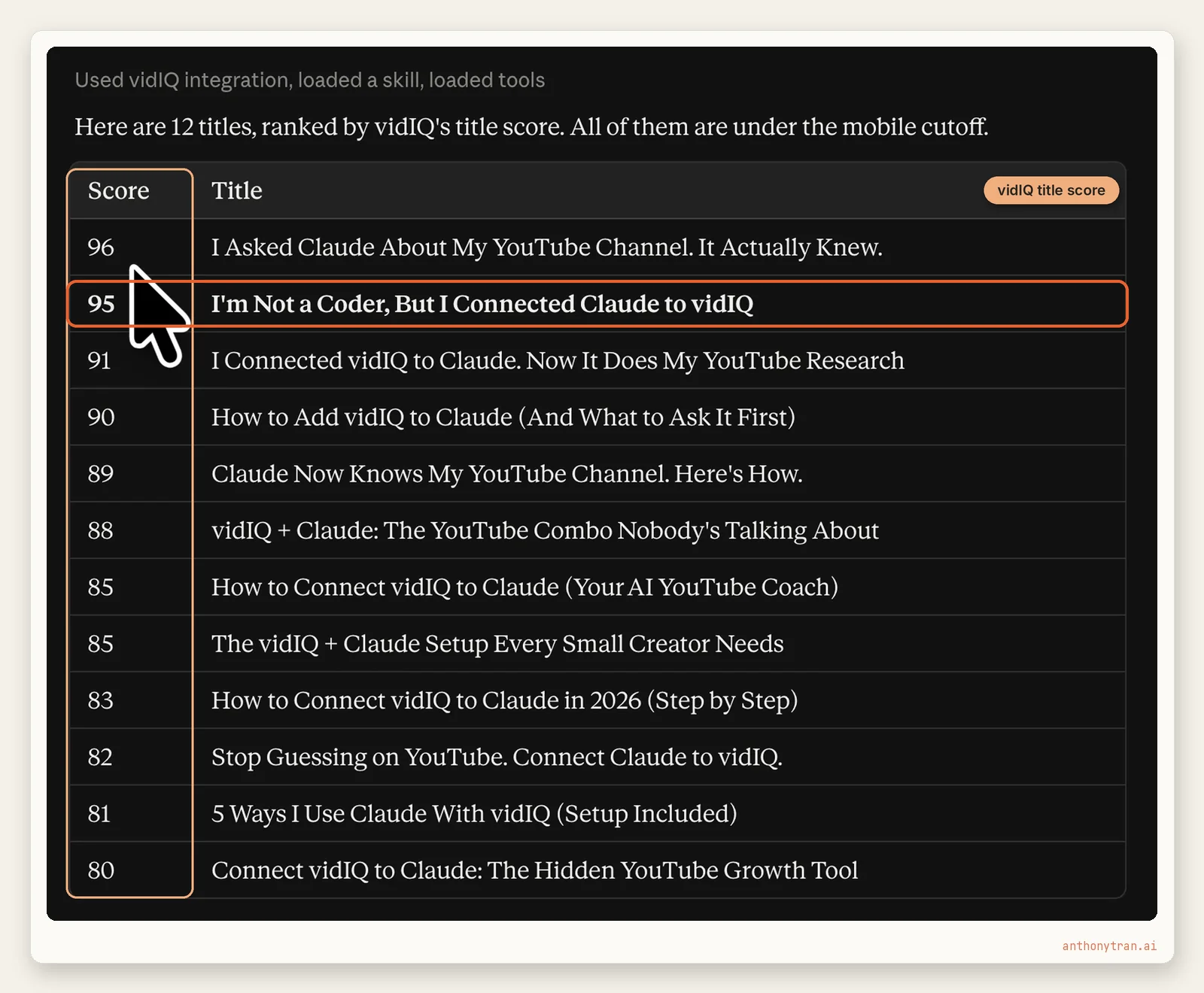
What I liked is that Claude did not just pick the top score. It preferred the 95, because that title names vidIQ, which makes the topic clearer and lines up better with what people search for.
That is the whole point of the pairing. Claude works from vidIQ’s data instead of brainstorming without it. Its picks still need your judgment, but you are starting from real numbers.
A few things to watch for
Pick the Connector, not the Plugin. In the search results, the gray label under the name tells you which is which. This guide follows the Connector.
Watch your vidIQ credits. Most research tool calls cost 5 credits, and one prompt can trigger several of them. If you are planning something big, ask Claude how many credits it will use first. vidIQ’s guide suggests the same thing.
There is a version with more tools. vidIQ says the directory connector skips some tools the custom connector has, like thumbnail generation, comment insights, and making changes to your YouTube videos. Start with the directory version. If you want more later, vidIQ’s guide walks through the other one.
The numbers are estimates. Search volumes and scores are vidIQ’s estimates, not Google’s or YouTube’s official counts. Use them to compare options, not as exact math.
Put This Into Practice
Once vidIQ is connected, here is a good first conversation. Open a new chat and paste this in.
Use vidIQ to look at my YouTube channel. First, tell me my three best performing videos and what they have in common. Then find three recent breakout videos from small channels in my topic area. Last, give me three video ideas I could make next, each with a title and its vidIQ title score. Keep it short, and tell me which idea you would make first and why.
That one prompt runs through most of what I showed above. It uses a few rounds of vidIQ credits, so if you are on a free account, start with just the first line.
The short version
Connecting vidIQ to Claude takes a few steps. Once it’s connected, you can research video ideas and review your channel without copying numbers between tabs.
Go ahead and connect it, then ask Claude what your best video is. If you get stuck on any step, leave a comment on the video and I will help you out.
~ Anthony
Frequently asked.
How do I connect vidIQ to Claude?
In Claude, click the plus button in the message box, hover over Connectors, then choose Add connector and Browse connectors. Search for vidIQ, click the plus on the one labeled Connector, then click Continue connecting and Authorize when vidIQ asks. That is the whole setup.
Do I need a paid vidIQ plan to use it with Claude?
No. vidIQ says its Claude connection works on all of its plans, including Free. It draws from the same credit balance as the vidIQ website. Most research tool calls cost 5 credits, some tools are free, and one Claude prompt can trigger several calls.
What can Claude do with vidIQ connected?
With the directory connector, Claude can pull vidIQ's keyword research, look up stats for a channel you've linked to vidIQ, find breakout videos from small channels, and score title ideas, all from a normal chat. vidIQ's thumbnail generator needs vidIQ's custom connector instead.
Stop re-explaining yourself to Claude.
Grab the free AI Starter Kit: my exact Claude setup, so it knows your business. Plus the lessons as they land.
Anthony Tran
13 years in marketing and an Air Force veteran. I use Claude every day to market and grow my own business, and I break down what works in plain English. Writing and recording from Arizona.